Chapter 5. Staff Use of Mobile
This final chapter of this report covers how mobile technology and tools can benefit library staff, including providing smartphones and tablets for staff, using mobile devices for outside library events, using mobile devices for video and social media, creating a photo booth for customers, and using tablets as digital signage, catalog kiosks, and exhibit accessories. Staff-focused mobile apps are also discussed.
Smartphones as Staff Tools
Most likely, the great majority of your library workers own smartphones. But in my office, I have a normal desk phone. Can a smartphone replace office phones?
Yes, it (mostly) can. The one thing a smartphone doesn’t handle in quite the same way is the conference-calling feature. With my large office phone, it’s easy to gather a couple of people around my desk for a quick conference call. That could certainly work using a smartphone, but it would be harder to hear.
Otherwise, a smartphone can definitely work for a work phone. My library’s Mitel VoIP phone system comes with mobile app phone software that can turn a smartphone into a phone on our network. So if I wanted to, I could load the app on my personal device and use that as a work phone when I’m away from my desk. This would allow me to get work-related calls that would ring through the mobile app rather than coming through the normal phone functionality of my smartphone.
At my library, we still use desk phones in many places (as in my office) where they make sense. But we also use smartphones (iPhones, to be specific) in some areas, with the Mitel Communicator app loaded onto the phone:
- most of our service desks
- at our new curbside pickup service
- maintenance staff phones
- security staff phones
- the evening and weekend manager shared phone
- bookmobiles and other vehicle-based services that go offsite (They use smartphones for communicating to the library and calling customers.)
Besides the phone app, we also use the Zello app (figure 5.1), which is a push-to-talk app. Zello is basically an app-based walkie-talkie replacement. A little history here: sometime before I started at the library in 2006, the library used actual shortwave walkie-talkie radios that we purchased from the county. They actually covered the whole county, which was more than we really needed. We used these throughout the building—to call for maintenance, security, and digital services. Each service desk had one, and staff often used them instead of calling on the phone or sending an e-mail.
Zello
Useful? Definitely. Overkill? Definitely. When we discovered we could replace this system with an app on a smartphone, we did just that and haven’t looked back. The mobile app works just as well as the walkie-talkies did and costs us much less per year.
Downsides to Smartphones for Staff
There are certainly some downsides to using a smartphone as your work or service desk phone. For example, smartphones are easy to misplace. They are also easy to steal. Both have happened since my library moved to smartphones. Thankfully, our digital services department can lock the phones remotely if needed.
Panic buttons are another challenge for us. We used to have more stationary service desks in the building (like a large reference desk). Each service desk had a large red panic button that alerted security if help was needed at a specific service desk location.
We have recently moved to smaller service desks and have more staff moving around the building, actively helping customers as needed. Where do you put a panic button in those instances? Thankfully, Zello offers a panic button option. We are in the process of testing that solution and will move to it if it meets our needs.
There are many other types of panic button replacement options that connect directly into phones, are app-based, or are independent of a phone. It’s important for staff to be able to discreetly alert security personnel or managers when there’s an issue that is escalating.
Tablets in the Library
There are a couple of different ways for library staff to use a tablet: I’ll call these customer-facing tablets and staff helps.
Customer-Facing Tablets
There are many ways staff can use a tablet to connect with and help customers. When a customer uses a library tablet, we’ll call that a “customer-facing tablet.” Here are a few ways that Topeka & Shawnee County Public Library has used iPads over the years:
- Tablets as catalog kiosks. In our youth services section of the library, we have set up an iPad on a stand. It points to our library catalog and is meant to be used for quick catalog searches. I see customers using it all the time. The nice thing about this setup is that it’s easily movable to anywhere in the building. It just needs power (no wired network cable needed). We can place it closer to the bookshelves than a traditional library catalog computer station, so it’s closer to the point of need.
- Tablets for kids. We have also experimented with placing a couple of iPads in our youth services area loaded with age-appropriate apps. These were for children to explore and use. We also purchased large, padded iPad cases for the iPads, so if they were dropped, they were less likely to break.
- Photo booth tablets. We have used an iPad as a photo booth for the public. We purchased a photo booth app, set the iPad on a stand, and created a fun backdrop with props. We have done this a few times, and people find it to be a fun addition to a library event. It’s set up so that you can e-mail or text message the photo to yourself for posting to your own social media accounts. We encourage the use of specific #hashtags depending on the event, such as #summerreading for our summer reading events, or #topekalibrary for a more general hashtag. Then, we can track the photos that customers share in their social media accounts so that we can see and share the photos, too (with permission, of course!).
- Tablet as art exhibit accessory. We have used iPads as part of our art gallery exhibits a couple of times. As I write this, we have some iPads set up with art creation apps as part of our Story Worlds interactive children’s art exhibit.1 We have also used iPads in the past for music-related and space-related exhibits (figure 5.2).
- Tablets as digital signage. Our public meeting rooms all have iPads as digital signs. We use the Communico Broadcast app for all our digital signage needs. We also use iPads for signing up for our group study rooms (we call them team rooms) and use Communico’s Reserve app to manage that process.
Staff Helps
There are also many ways for a library staff member to use tablets for work and for customer interaction:
- Design tools. Our graphic designers use iPad design tools to help with graphic design projects.
- Note-taking tools. Staff with iPads use them to take notes at meetings, using a variety of note-taking apps. One popular app we use is the GoodNotes app.
- Public service staff tools. When a staff member is assigned roving reference duty, they have the option to use an iPad to look up answers to questions, help sign people in to our group study rooms, and so on. It’s a little easier on the eyes than a smaller smartphone, and it is much easier to carry around than a laptop.
- Event sign-up. We have used iPads, equipped with a Wi-Fi hot spot, to sign people up at parks and other locations for summer reading and other library-related events.
GoodNotes
Laptops as Mobile Devices
One other point to remember is this: a laptop, though it is not as small as a smartphone or tablet, is also a mobile device. Laptops are also relatively easy to move around. My library has just migrated all of our management staff from desktop-based computers to a laptop-based system with dual monitors and a docking station.
This way, managers have the freedom to take our full desktop system with us to a meeting or to a quiet place to get some work done. We also have the option to work from home should the need arise. Next up for us is to identify other staff who might need the ability to be flexible with where work gets done and to move those staff to a similar laptop-based system.
Social Media Works Best on Mobile
While we are talking about staff use of mobile devices, we need to mention the work of social media in libraries. To properly “do” social media, you really need a smartphone. Social media tools such as Facebook, Instagram, or Twitter all have website versions of their social media channels, but for the most part social media is focused on app-based usage.
Social media apps are designed to work well with smartphones. Many apps use smartphone notification features to send alerts to users. If the app uses location data, it might share who or what you are close to. Some apps allow you to tag a recent photo with information about where the photo was taken or who is included in the photo.
For a library, loading social media apps onto a staff mobile device is pretty handy. This system allows you to interact with your digital customers, even while working the physical floor at the library. If you answer questions via Twitter or Facebook direct messages, you can do real reference work from that phone and help digital library customers at the point of need.
The downside? You need to allow staff to use personal devices to connect to work-related things, or you need to purchase staff-only mobile devices. Staff might not like connecting personal devices to do library-related work. Staff might wonder if the library should help pay for or reimburse them for the phone, or provide a library phone, since it’s being used for library work. There are definitely a lot of considerations when asking staff to use mobile devices for library work.
Video Works Great with Mobile
These days, there are many ways to capture video that can be shared on social media sites such as YouTube or Facebook. You might use a mirrorless or DSLR camera. You might have a smaller point-and-shoot camera that captures decent quality video. You might have a bunch of detachable camera lenses and microphones to accessorize your camera and enhance the production quality of the video.
There are, however, extra steps to transfer that video to a social media site. And these days, most of your staff have a full HD-quality, 1080p video recorder in their pockets. Today’s smartphone captures truly quality video (figure 5.3).
If you want to start creating videos to share on social media and on your website, start with the camera that’s already in your hand—your smartphone. After a while, if you want to improve the quality of your videos, you may want to think about accessorizing your smartphone with some additional tools. For example, you can purchase microphones made for your mobile devices that will improve the quality of the audio for your videos. You can also buy lens attachments that extend the functionality of your mobile device’s camera lens. You can buy handheld smartphone video stabilizers that will help remove the extra shake from your videos.
Better lighting will definitely help too! There are lots of inexpensive video-focused lighting systems that work great with smartphone-based video systems.
So, get your phone out, press Record, and start experimenting with video!
Wi-Fi Hot Spots for Staff Use
One important thing you will need for effective mobile device use is a good, strong Wi-Fi signal. You can get that with a data plan, certainly. You can also ensure a strong signal if you have robust Wi-Fi in your library building. One easy way to get a good Wi-Fi signal when outside of your library building is to use mobile Wi-Fi hot spots.
Mobile Wi-Fi hot spots connect to the internet without having to use a smartphone’s data plan and a potentially spotty signal. In Shawnee County, as I mentioned before, mobile connectivity varies greatly as you move into more rural areas of the county.
My library has used hot spots for our bookmobiles for years. This allows us to do two things: first, we use hot spots for checking items out to customers. This allows us to do checkout in real time, because the laptops on our bookmobiles can connect directly back to the ILS located in our data center.
Second, we have a separate hot spot designated for customer use. This plan allows our customers to get help downloading e-books or using something on our website without having to use their data plan.
Another new service that we are hoping to test soon is our new book bike! This recent purchase will be loaded with books to check out and will be parked in various places around town. The staff member assigned to book bike duty will have an iPad and a hot spot to connect to the web, help with checkout, or answer questions as needed.
Mobile Apps
I have mentioned a variety of mobile apps that my library uses on our mobile devices. Here’s a list for your reference:
- Zello: This is our walkie-talkie replacement app.
- Paycom: We use Paycom for our payroll software. There’s an app-based version for checking your pay stub and for clocking in and out.
- GoodNotes: This is one of the note-taking apps we like on an iPad.
- Patron database apps: Many apps can be included here, including OverDrive, Libby, Hoopla, Flipster, EBSCOhost, RBdigital, Creativebug, and Lynda. These days, many library databases have an app-based version of the service.
- Microsoft Office 365 apps: We recently moved to Microsoft 365, and Microsoft has app-based versions of its Office suite of products.
- Photo booth apps: We use a variety of apps for photo booth fun.
- Kiosk mode apps: We use Kiosk Pro Lite and Kiosk Mode apps for our digital signage. They place the iPad in kiosk mode so no one can get into the app and mess things up.
- Mitel Connect: This is the app-based version of our Mitel VoIP phone system.
- Basecamp: This is the app version of the project management tool we use.
- Communico Engage: We use Communico’s mobile app as our library-wide mobile app. This app searches our catalog, works as a calendar of events, and lets us place a variety of other information from our website onto the mobile app for quick lookup (such as our hours).
I hope you have seen throughout this publication that mobile devices have a great many uses for a library system, both as customer-facing and as staff-facing tools. Helping customers connect with the library by using your library’s mobile apps can be a great help for customers on the go, as well as providing convenience and comfort to use the apps on their devices anywhere in your building.
Note
- “Story Worlds,” Topeka & Shawnee County Public Library, accessed September 4, 2020, https://tscpl.org/gallery/story-worlds.
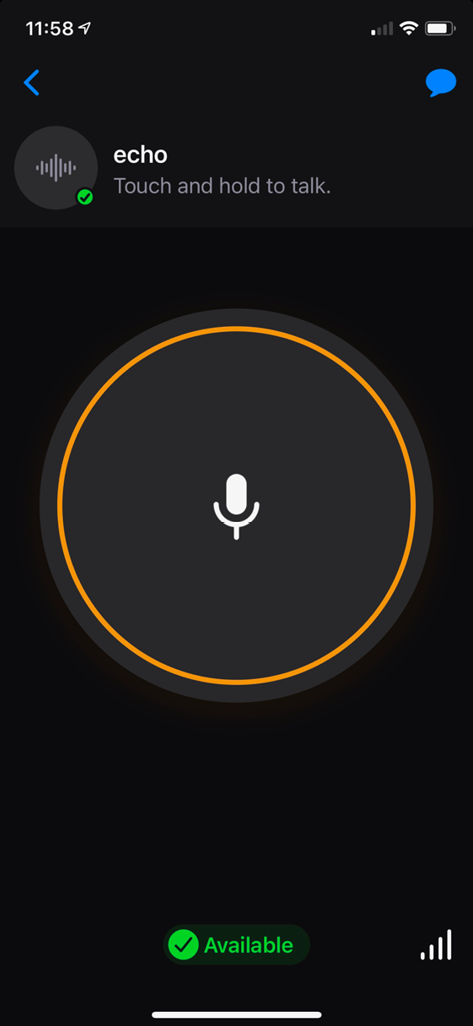
Figure 5.1
Zello app on a smartphone
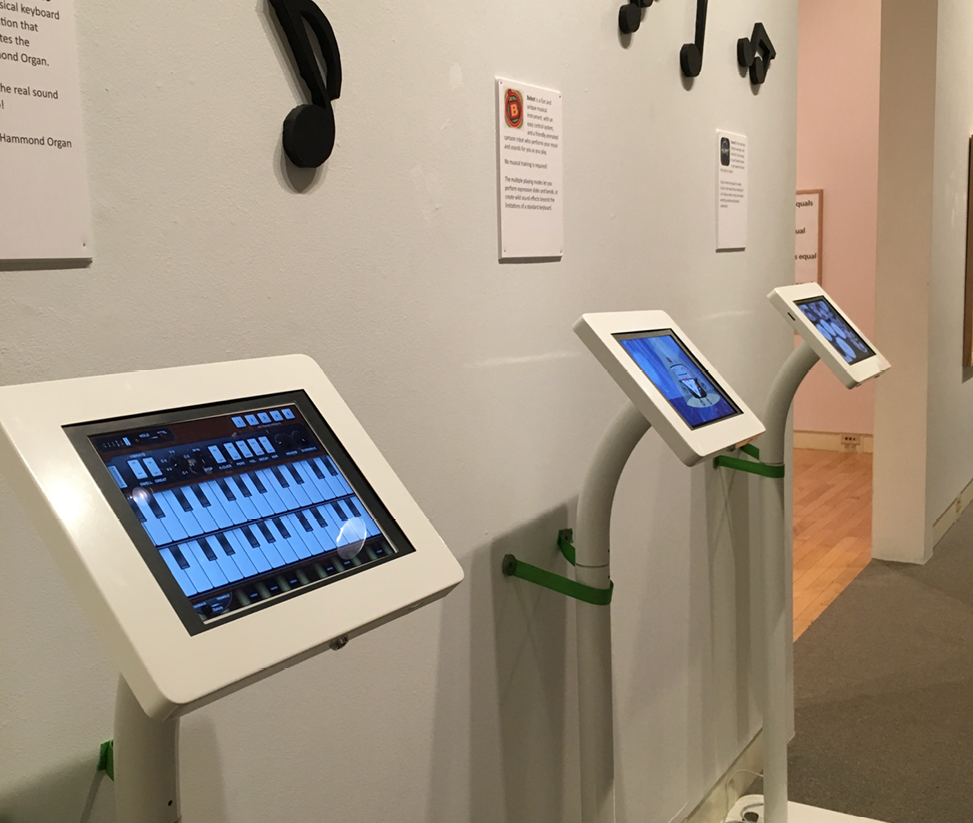
Figure 5.2
iPads for art event
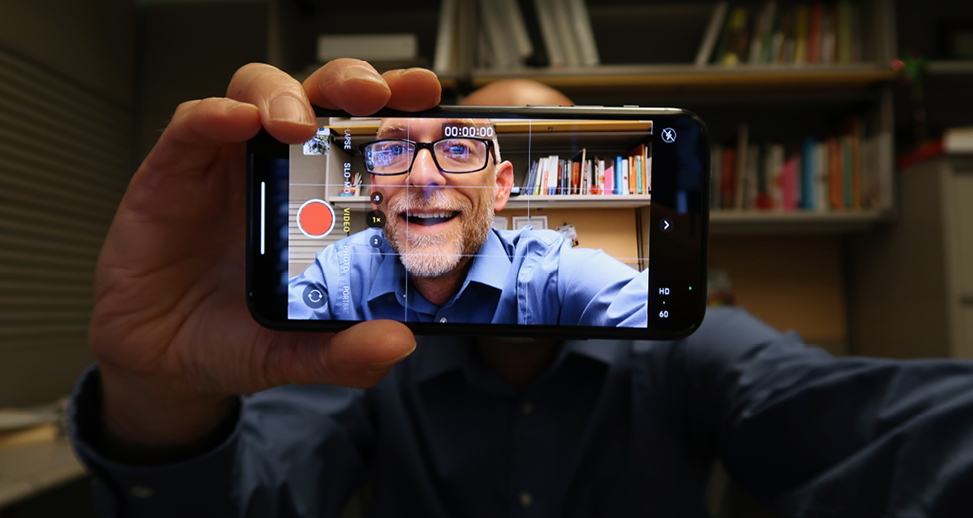
Figure 5.3
David making a video with his iPhone